Use the Perspective AI MCP
Updated: June 2, 2026
The Perspective AI MCP (Model Context Protocol) Server connects your Perspective workspace to AI assistants like Claude Desktop, Claude Code, and Cursor. Once configured, you can create conversation agents, analyze interview data, and deploy embeds without leaving your development environment.
What You Can Do
With the MCP server connected, you can:
- Create conversation agents directly in your AI assistant without switching to the Perspective dashboard
- Analyze interviews from a single outline by pulling responses and insights into your current workflow
- Analyze interviews across multiple outlines to identify patterns and themes across research projects
- Deploy embeds from your editor by generating and inserting embed code directly into your codebase
Prerequisites
- A Perspective AI workspace
- One of these AI assistants:
- Claude.ai (web, with custom connector support)
- Claude Desktop
- Claude Code (command-line tool)
- Cursor IDE
- VS Code (with MCP support)
Connect via OAuth
OAuth is the recommended path: you add the Perspective MCP URL to your client, complete a one-time browser sign-in, and the client manages the connection from there. No tokens to copy, rotate, or store in config files. Every connected app shows up under Connected Apps in Settings, where you can revoke access anytime. Open the workspace switcher and choose Manage workspace to reach Settings.
The MCP URL is the same for everyone:
Claude.ai (web)
Open the Add custom connector dialog (or navigate manually: Customize > Connectors > Add custom connector) and fill in:
- Name:
Perspective AI - Remote MCP server URL:
https://getperspective.ai/mcp
Click Add, then complete OAuth in the browser when prompted. The connector becomes available to every chat in your workspace. See Anthropic's custom connector guide for details.
Claude Code
The first time you call a Perspective tool, Claude Code opens a browser window to complete OAuth. --scope user makes Perspective available across all your projects — without it, Claude Code only loads the server in the directory where you ran the command.
Claude Desktop
Claude Desktop doesn't speak HTTP MCP natively. Use the mcp-remote shim, which handles the OAuth handshake in your browser. Add this to your Claude Desktop config file:
Restart Claude Desktop and trigger a Perspective request to start OAuth.
Cursor
Add this to ~/.cursor/mcp.json (global) or .cursor/mcp.json (project):
Trigger a Perspective request and complete the browser sign-in.
VS Code
Open MCP: Open User Configuration from the Command Palette to edit your user mcp.json, or create .vscode/mcp.json to share with your team:
VS Code uses servers at the top level, not mcpServers. Trigger a Perspective request and complete the browser sign-in.
Other stdio-only clients
For MCP clients that only speak stdio, use the mcp-remote shim. It discovers OAuth metadata automatically:
Connect with a Workspace-Scoped Key
If your client doesn't support OAuth or you'd rather authenticate with a long-lived credential, create an MCP key and use its token as a bearer token.
1. Create an MCP Key
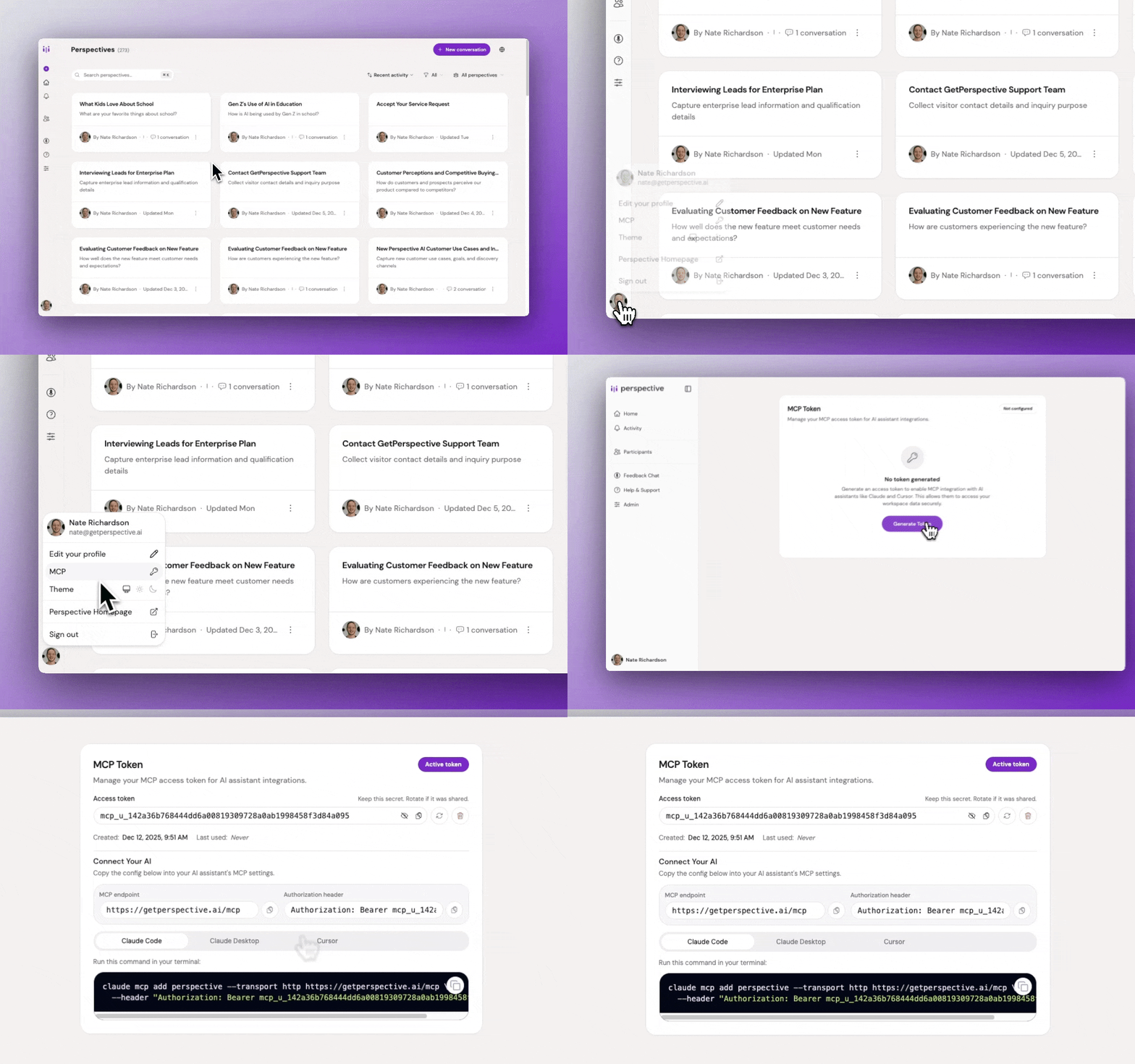
Open the profile menu at the bottom of the sidebar and choose MCP, or open the workspace switcher, choose Manage workspace, and select MCP. Under Create a new key, enter a name, select the workspaces the key may access, and click Create key.
Each key is scoped to the workspaces you select — an assistant using it can only reach those workspaces, and only while you remain a member of them. Create a separate key per assistant, scoped to just the workspaces that client needs.
MCP page showing the Create a new key form
Once created, Perspective shows the full token once in a secure dialog. Copy it before closing the dialog; after that, the key list only shows a masked token. If you lose the token, delete the key and create a replacement.
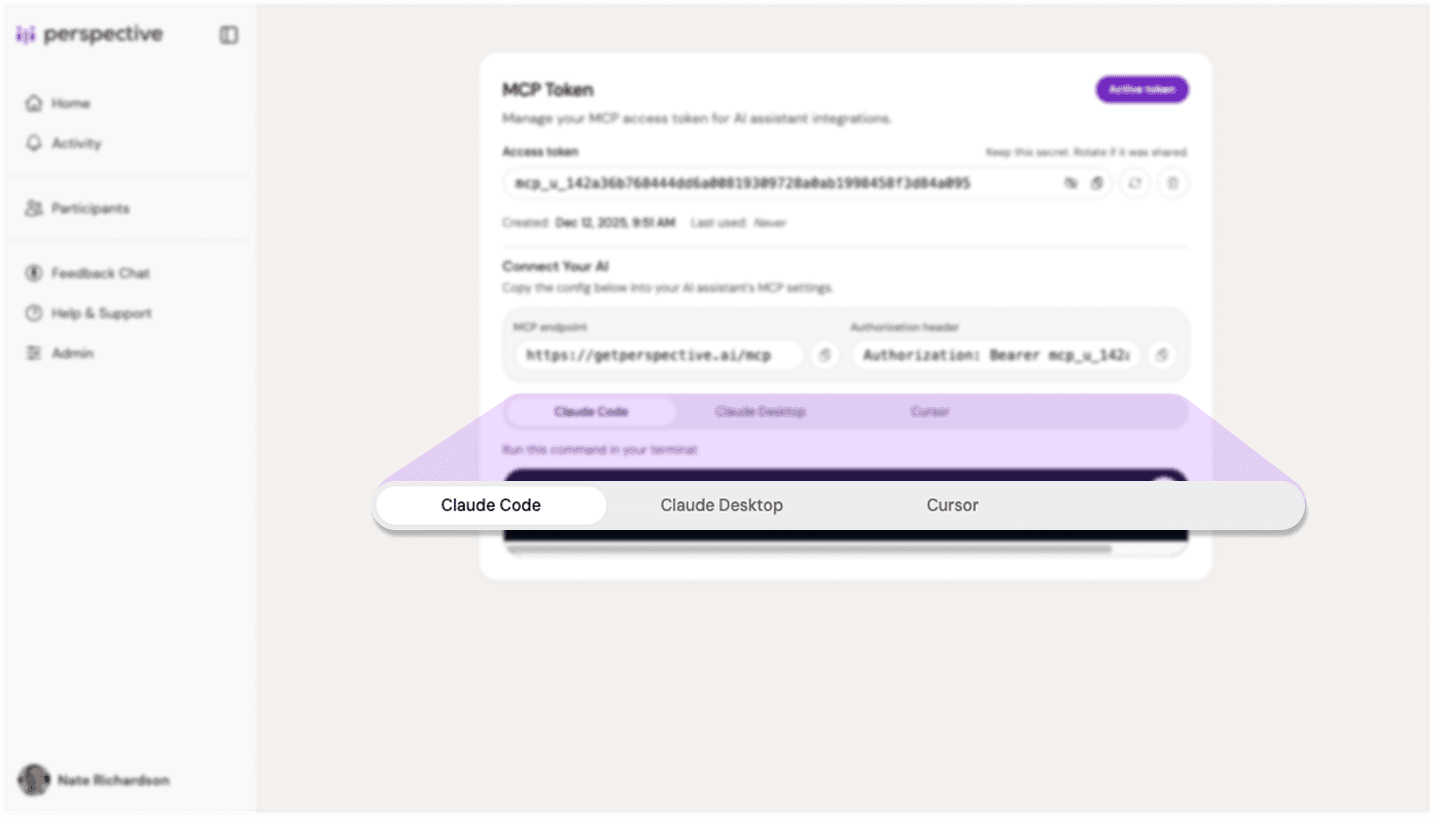
MCP key card showing the token and configuration options
MCP keys work with the MCP endpoint and with the current REST create endpoint. OAuth access tokens are scoped to the remote MCP resource and should be used only with /mcp.
2. Configure Your AI Assistant
Claude Code
--scope user makes Perspective available across all your projects.
Claude Desktop
Add this to your Claude Desktop config file:
Cursor
Add this to ~/.cursor/mcp.json:
VS Code
Add this to your user mcp.json (Command Palette → MCP: Open User Configuration) or to .vscode/mcp.json in a project:
3. Verify the Connection
Open your AI assistant and try a Perspective-related request, such as "Create a new interview outline for user feedback on our pricing page." If configured correctly, your assistant will connect to Perspective and execute the request.
Tool Coverage
The MCP server exposes tools across the same product areas you use in the dashboard:
For embed-specific implementation details, see the Embed API Reference. For webhook payloads and retry behavior, see Webhooks.
Example Workflows
Create a conversation agent from your IDE: Ask your AI assistant: "Create a new interview outline for customer discovery on our mobile app usage patterns."
Analyze interviews during development: Ask: "Pull all responses from the Q3 user research outline and summarize the top pain points."
Compare across research projects: Ask: "Analyze interviews from both the onboarding outline and the pricing outline. What themes appear in both?"
Deploy an embed while coding: Ask: "Generate the inline embed code for the product feedback outline and add it to the pricing page component."
Best Practices
- Keep keys secure: Treat a key's token like a password. To rotate it, delete the key and create a new one.
- Scope keys narrowly: Give each key only the workspaces the client actually needs, so a leaked key has a limited blast radius.
- Use specific outline names: When referencing outlines in requests, use exact names to ensure your assistant accesses the correct data.
- Test with simple requests first: Verify the connection works by creating a test outline or fetching a single interview before running complex analysis.
Common Pitfalls & Fixes
AI assistant returns "unable to connect to Perspective"
Verify the key still exists on the MCP settings page. Check that you copied the full authorization header including the Bearer prefix.
Assistant can't see a workspace
The key isn't scoped to that workspace, or you've since left it. Create (or recreate) a key that includes the workspace you're targeting — keys only reach the workspaces they were granted, even for admins.
Assistant creates duplicate outlines
Be specific in your requests. Instead of "create an outline," say "check if an outline named [name] exists, and if not, create it."
Key shows "Never" under "Last used"
This updates after the first successful request authenticated with an MCP key. OAuth-connected clients appear under Connected Apps in Settings instead.